How can we help?
Remove all Events from What’s On Page
This guide shows you how to amend your What’s On landing page for when you have no events for sale.
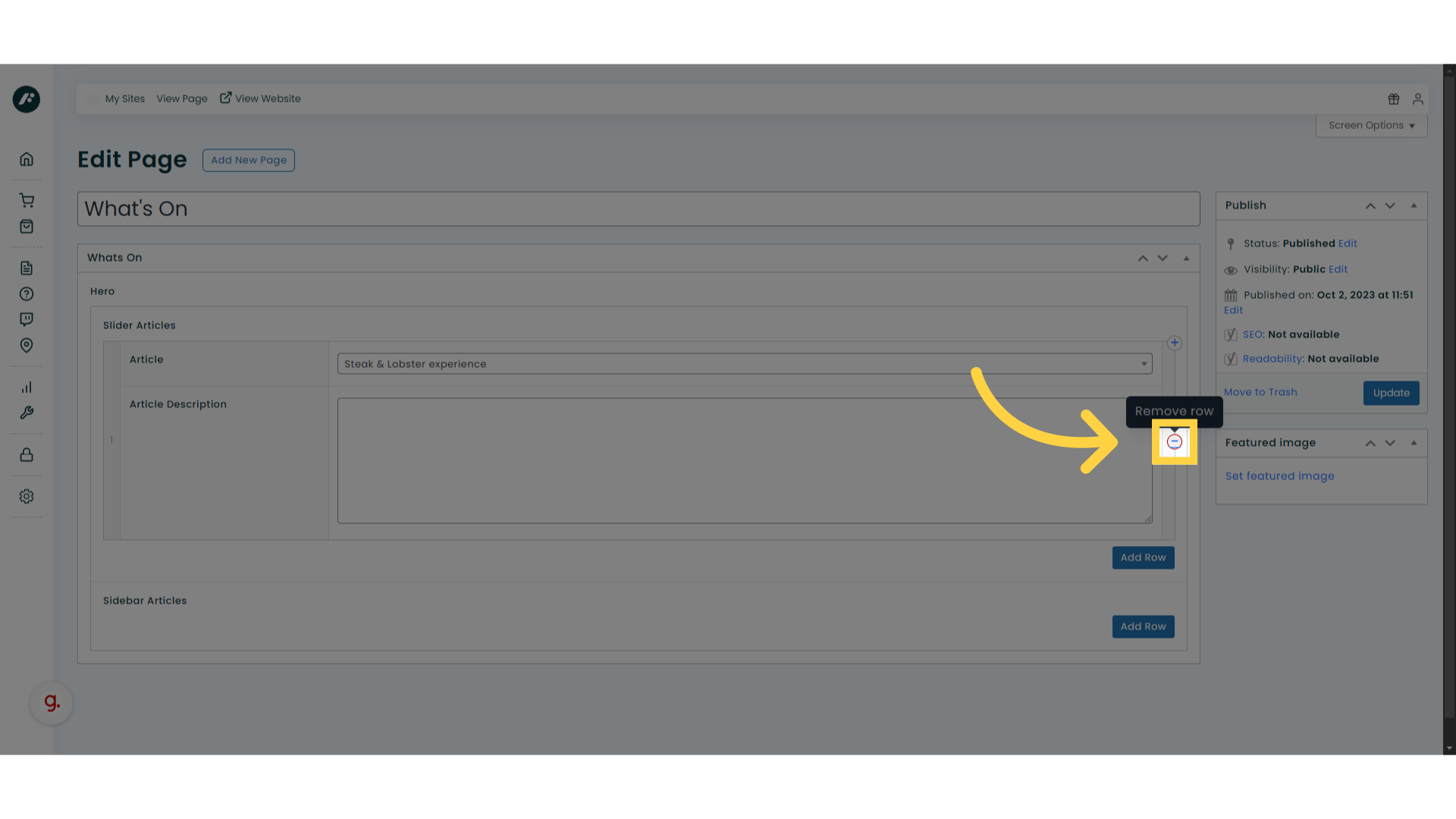
1. Remove existing event(s)
If you have an existing event set as your slider article(s) please remove them following these steps.
For multiple events follow the same steps to remove all slider articles.
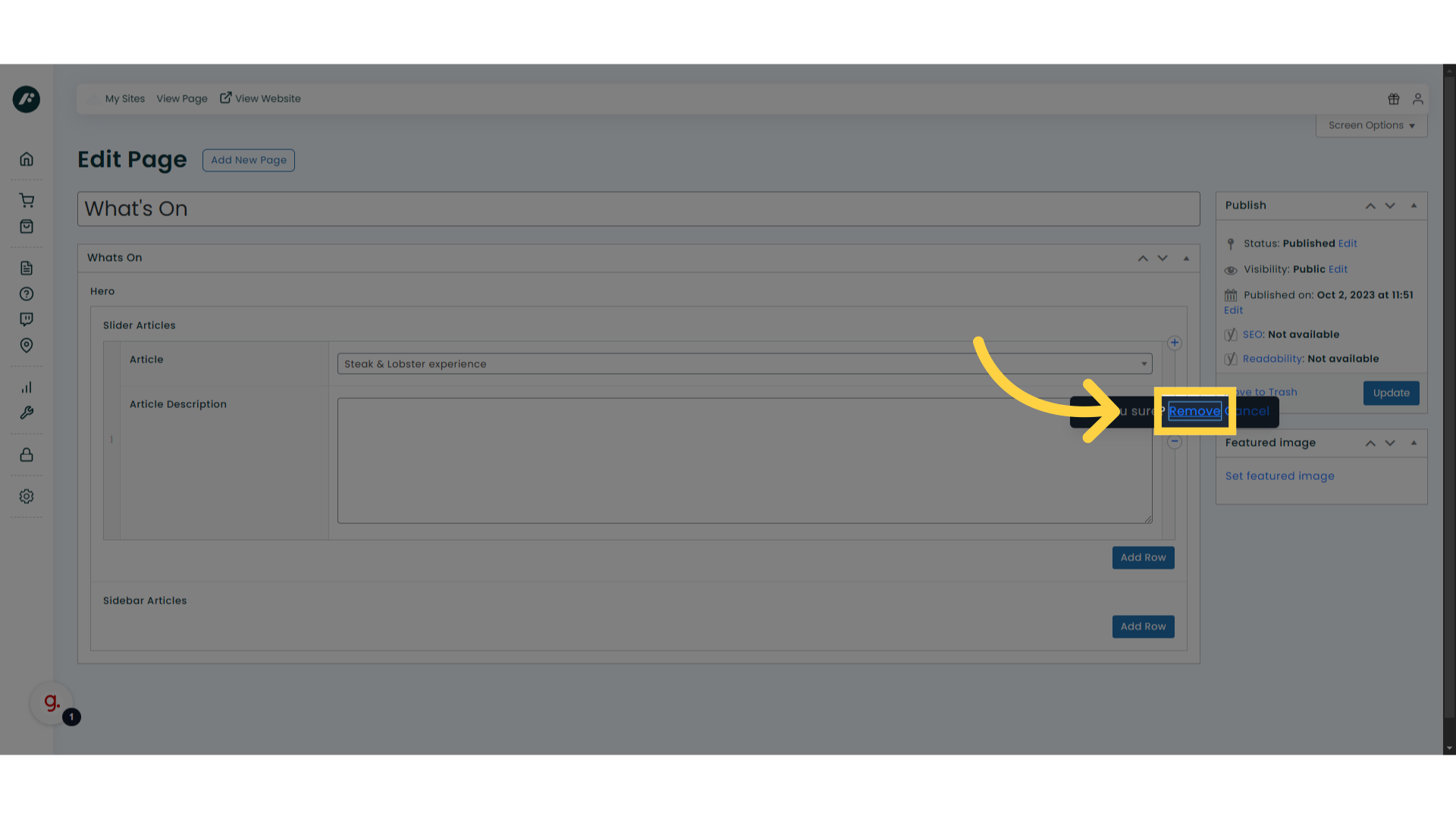
2. Confirm “Remove”
Confirm removal by clicking this link.
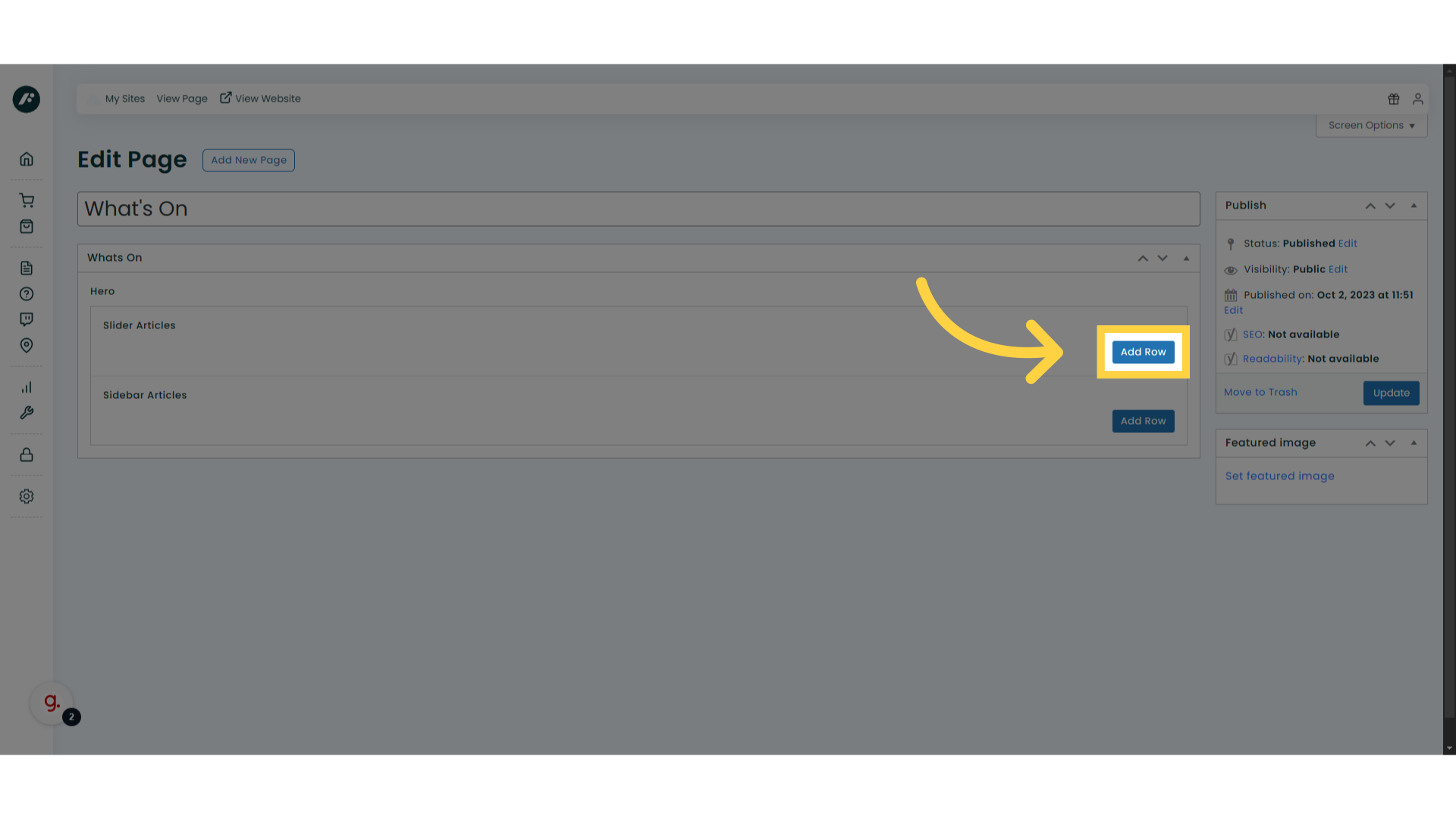
3. Click “Add Row”
Once all slider articles have been removed you’ll need to insert a new slider article row, which has no event selected.
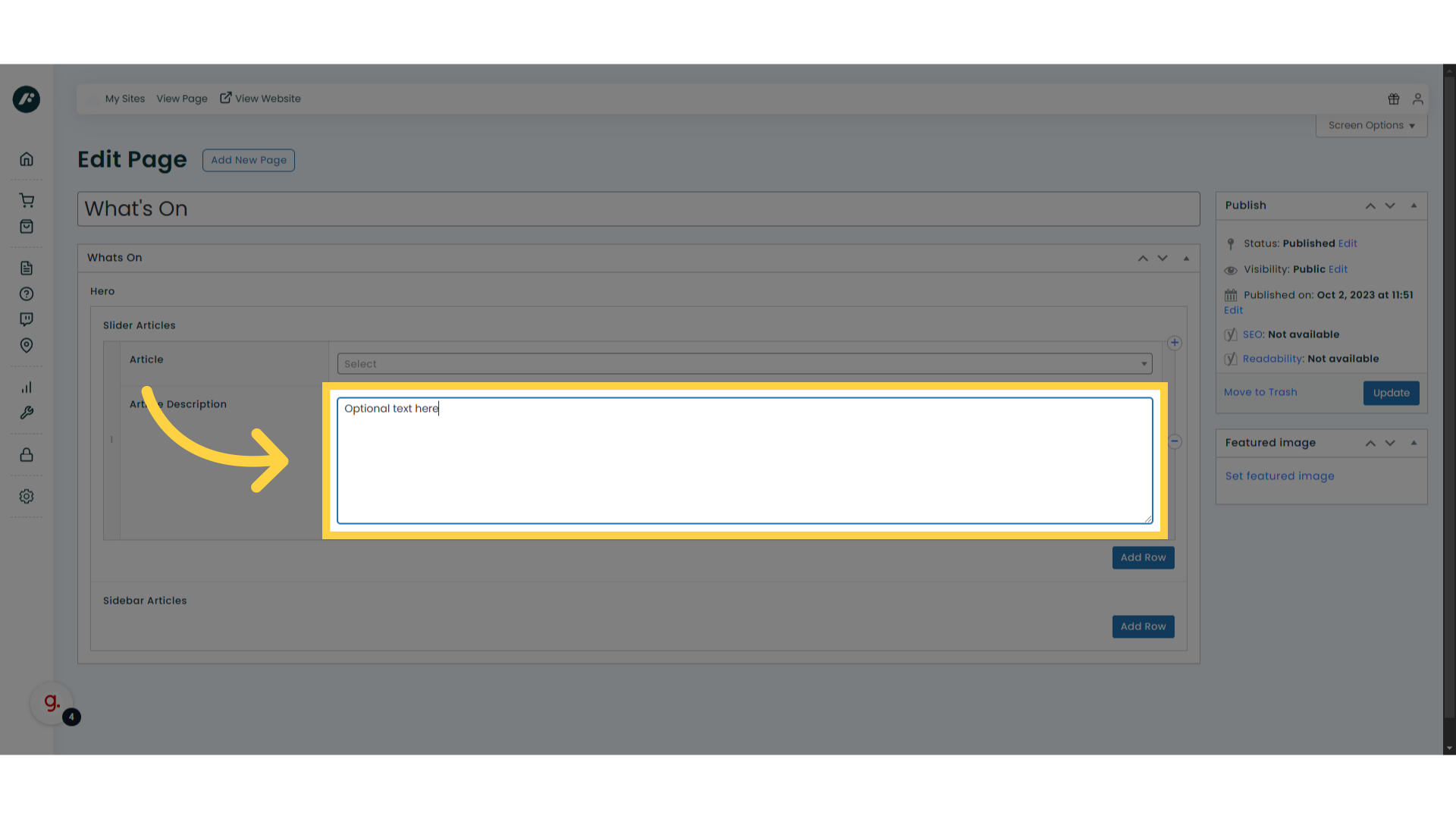
4. Optional copy
If you’d like to add extra copy, do so here.
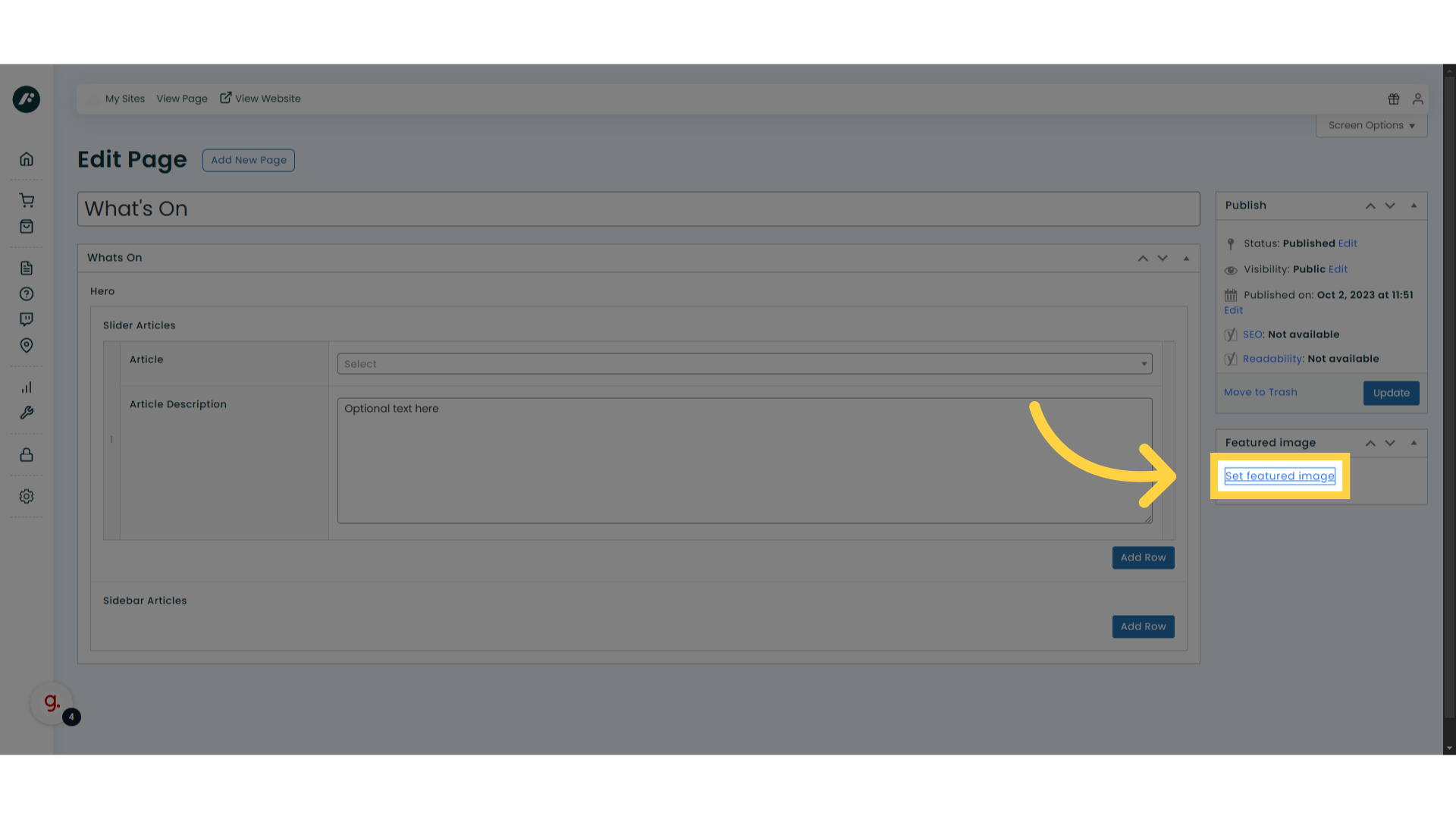
5. Click “Set featured image”
Select a featured image to be used on the page header.
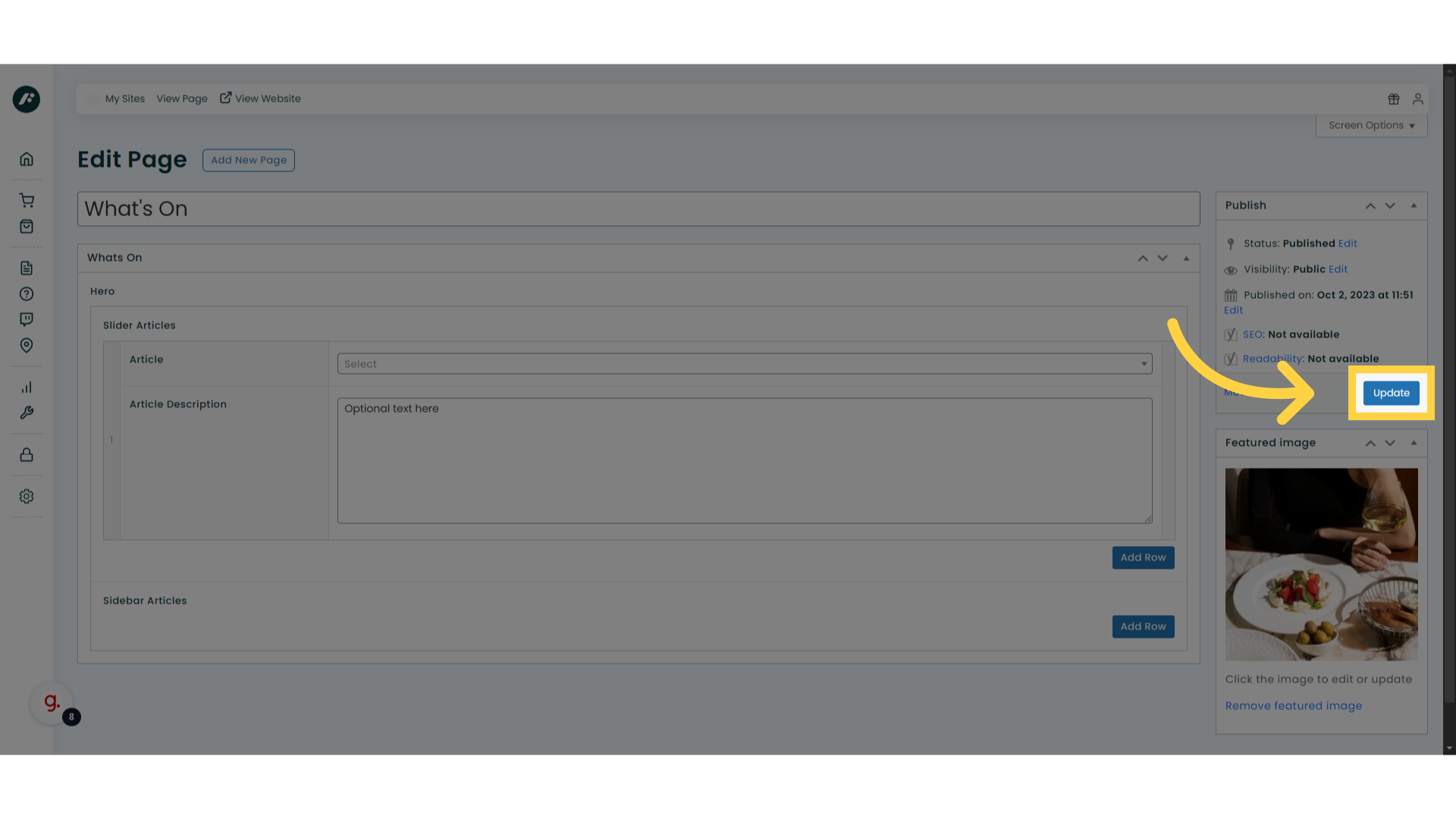
6. Click “Update”
Save changes by clicking on ‘update’.