Adding PopUps
This guide will walk you through the process of utilizing the PopUps feature in Fuse.
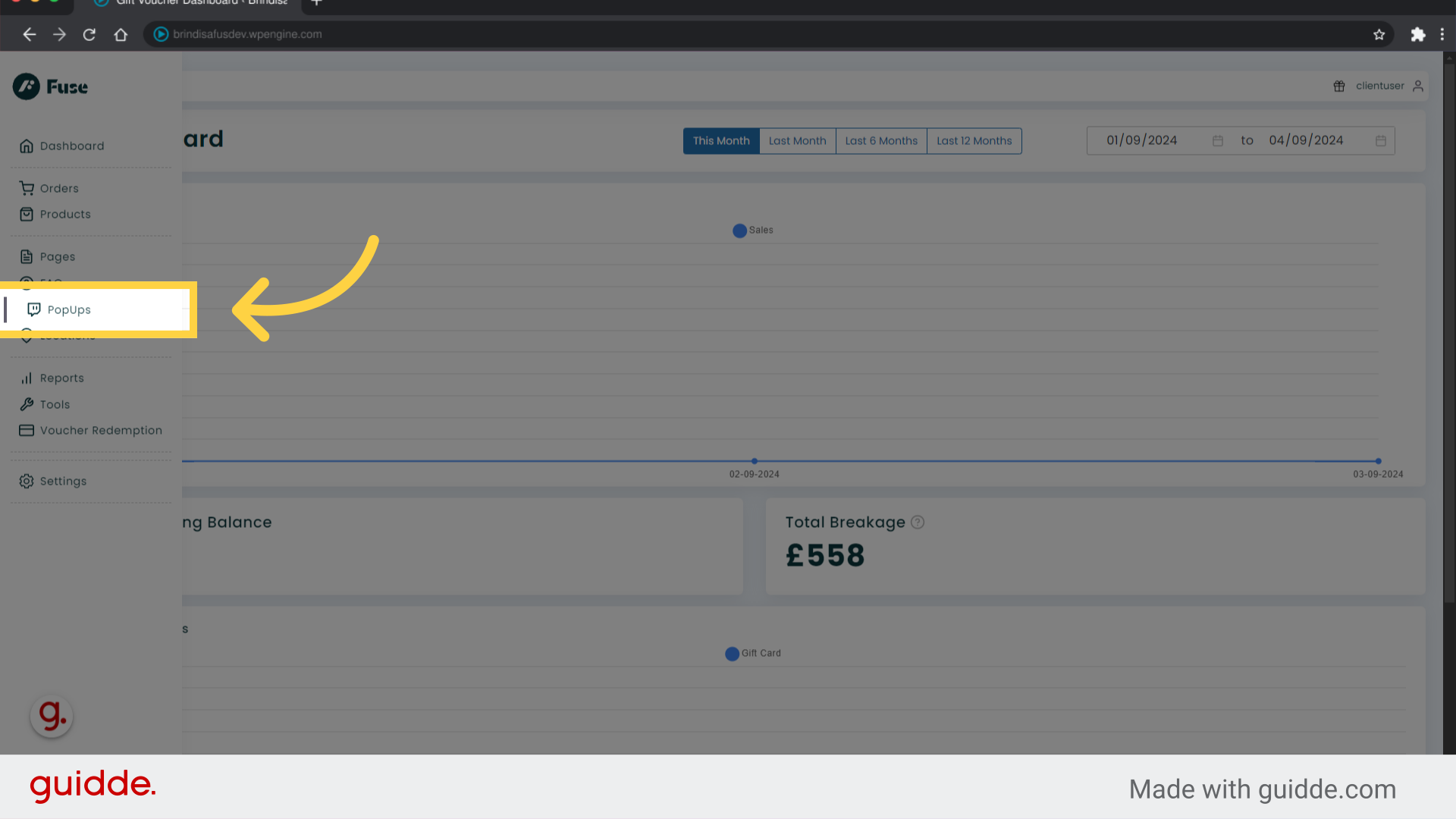
1. Click “PopUps”
Access the PopUps section.
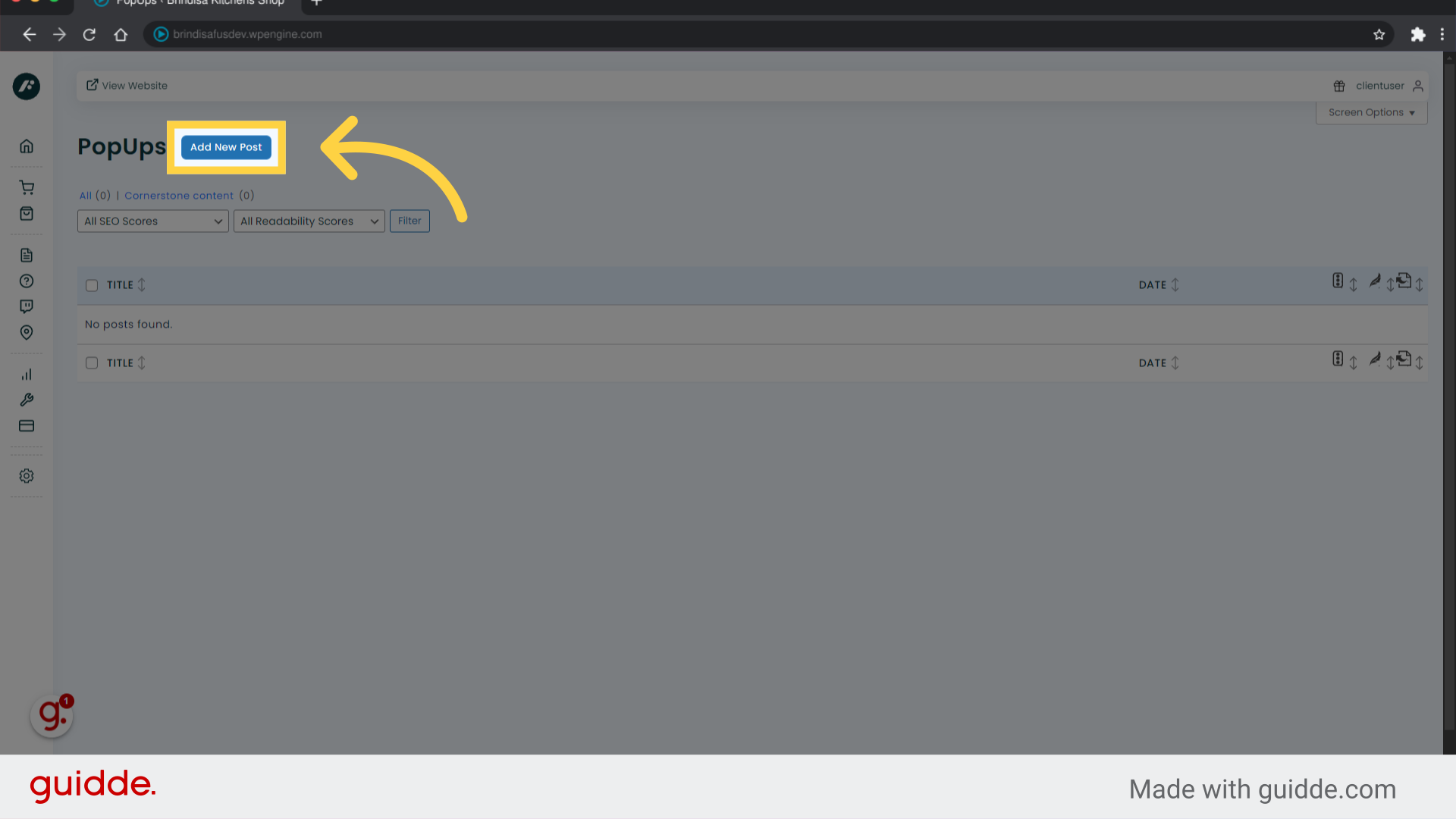
2. Click “Add New Post”
Click to create a new popup.
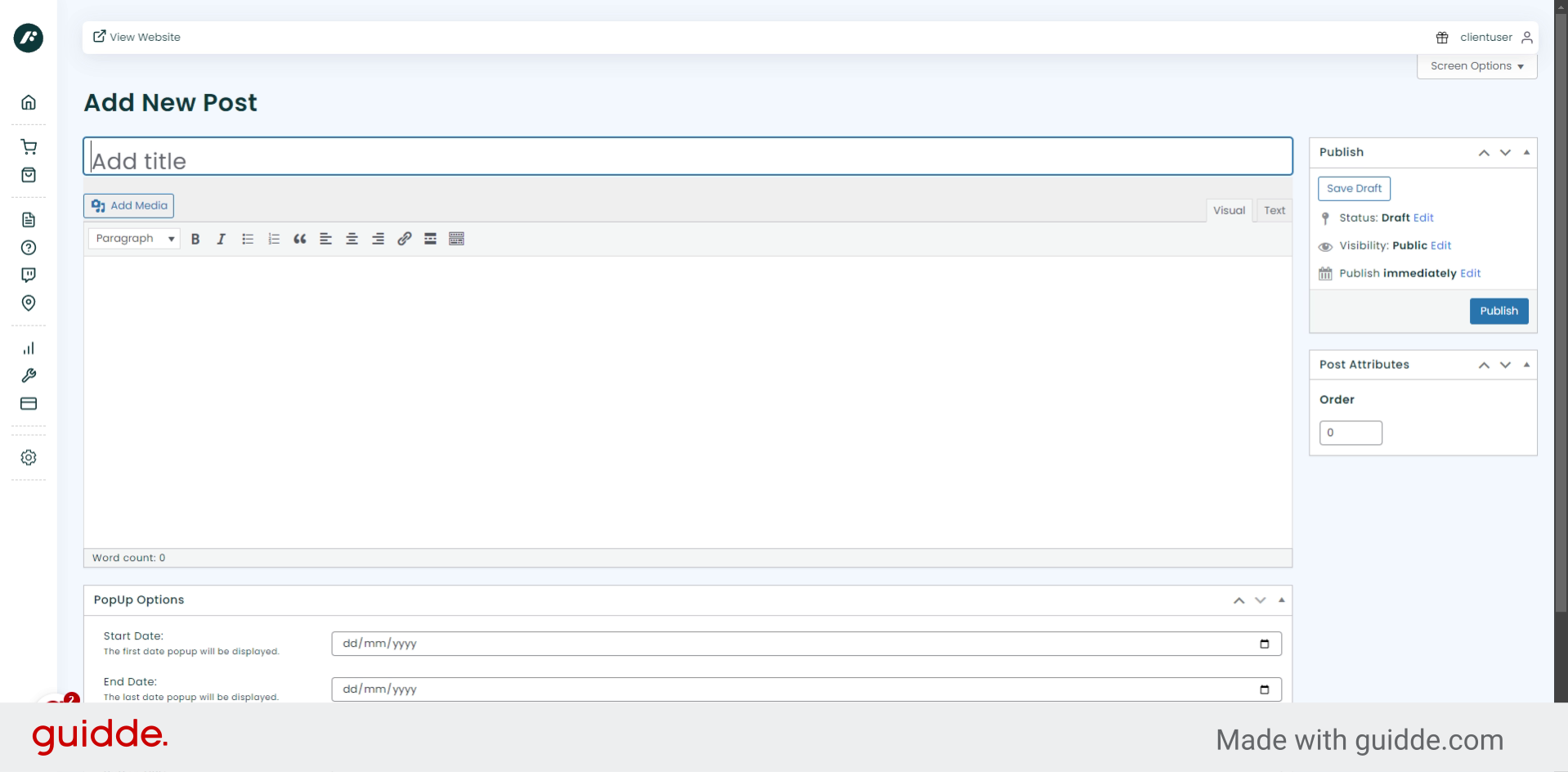
3. Create popup title
Enter the popup title
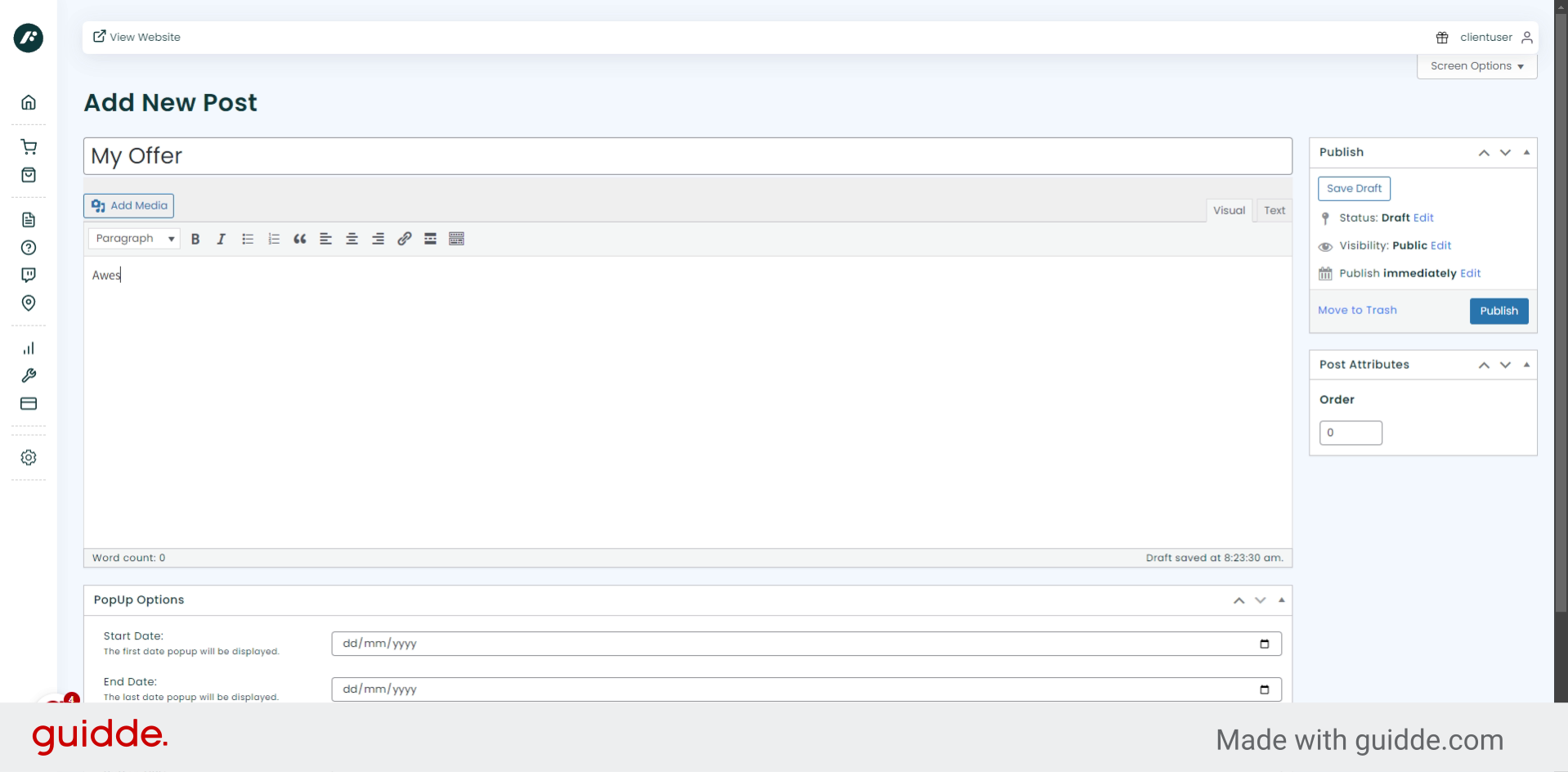
4. Create popup copy
Enter the popup copy.
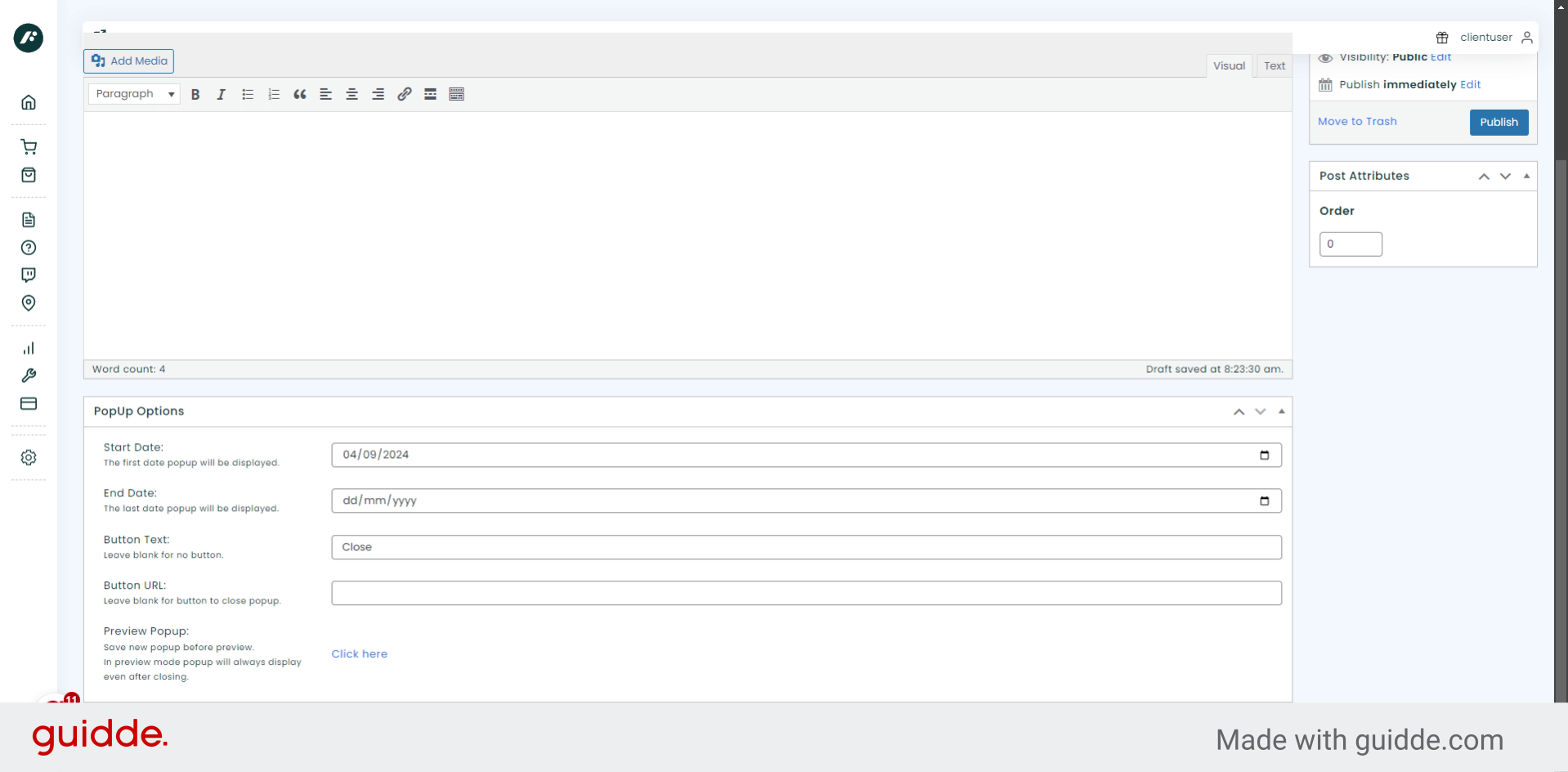
5. Click here
Below the copy area are various popup option. Next we’ll setup button copy.
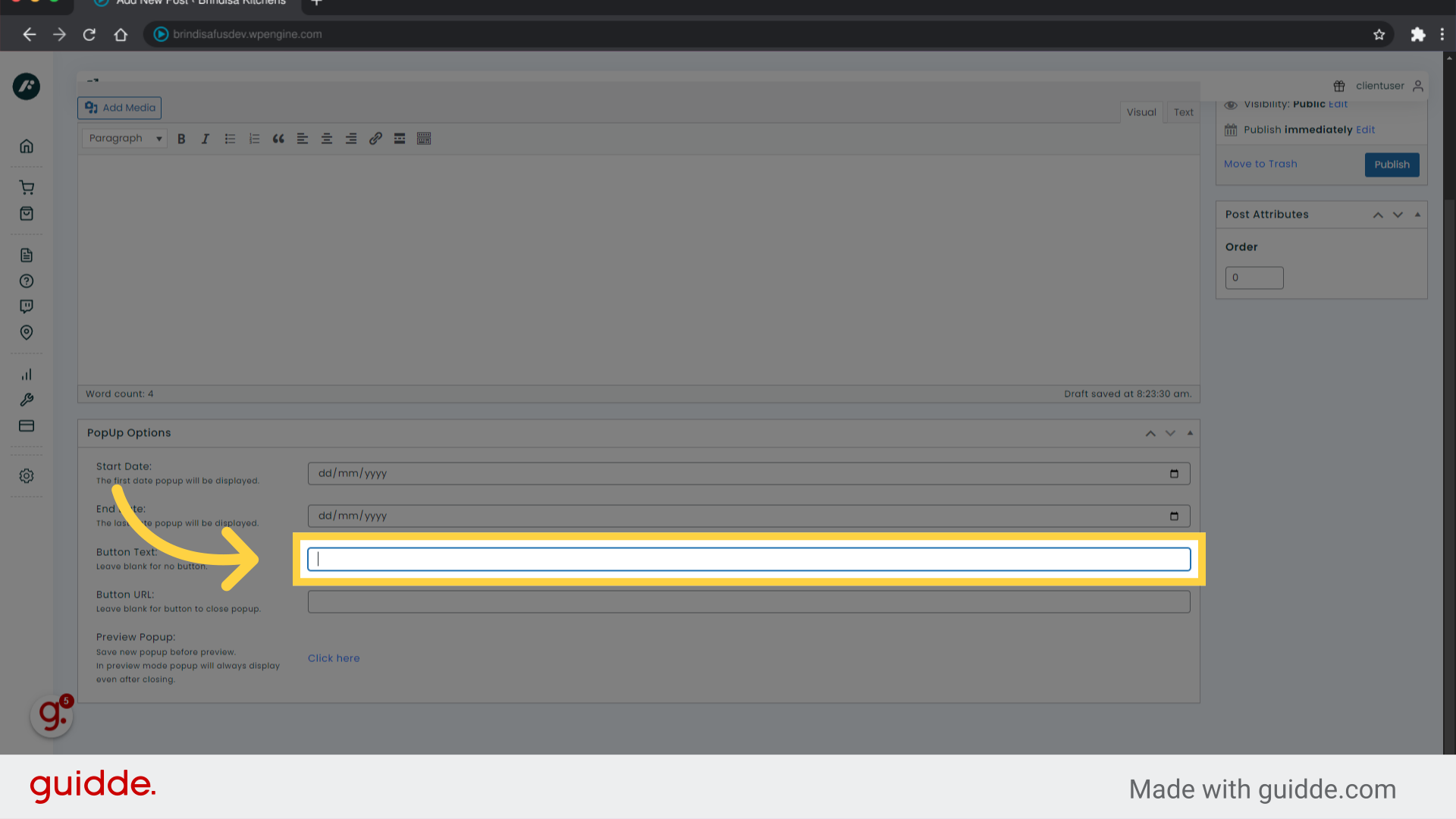
6. CTA button
Enter the popup CTA button copy. You can also enter a CTA URL, or leave the URL blank and the button will close the popup.
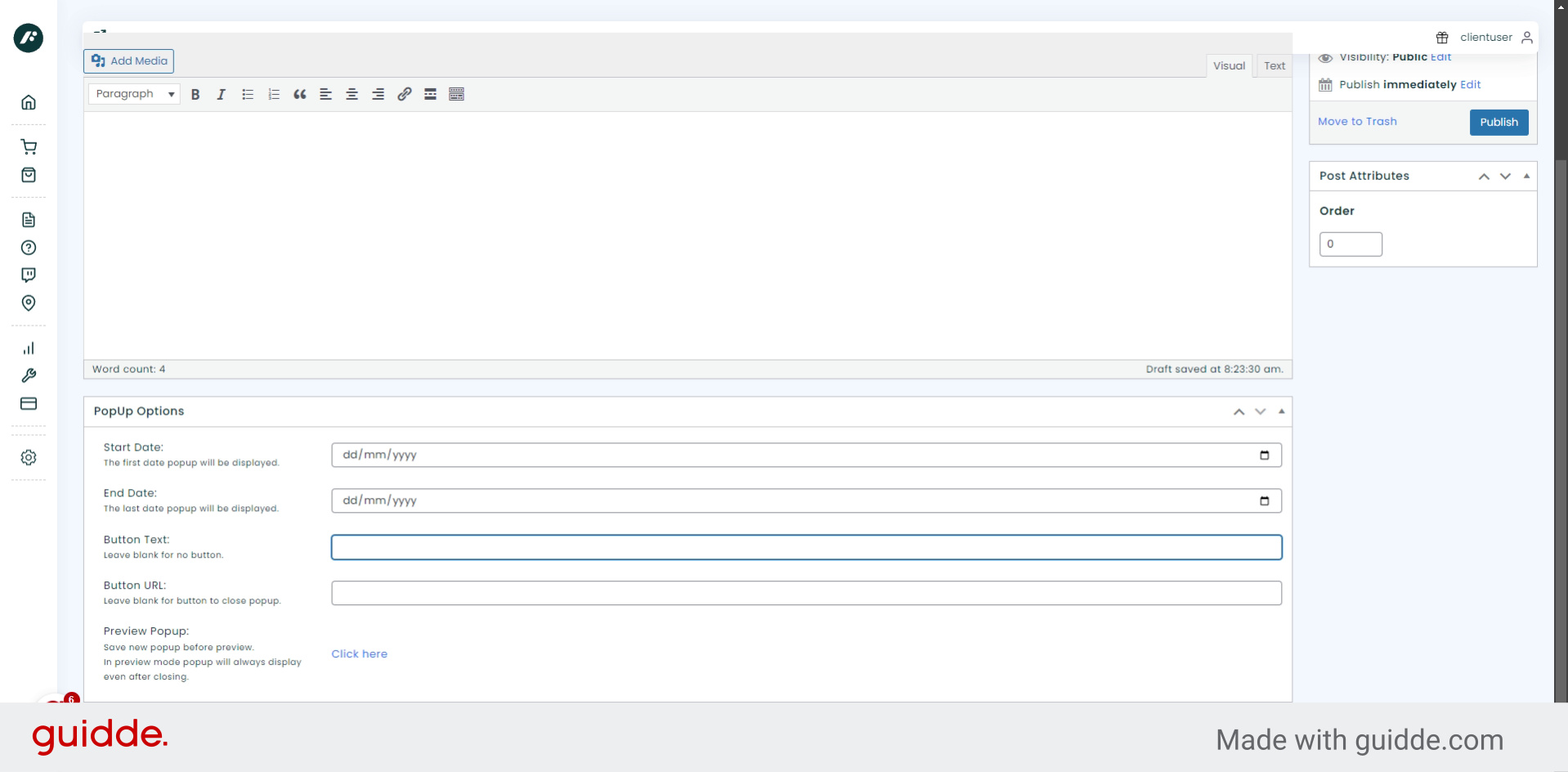
7. Popup display dates
Now we will schedule the popup dates. These can be set in advance of any promotion or messaging you want to display.
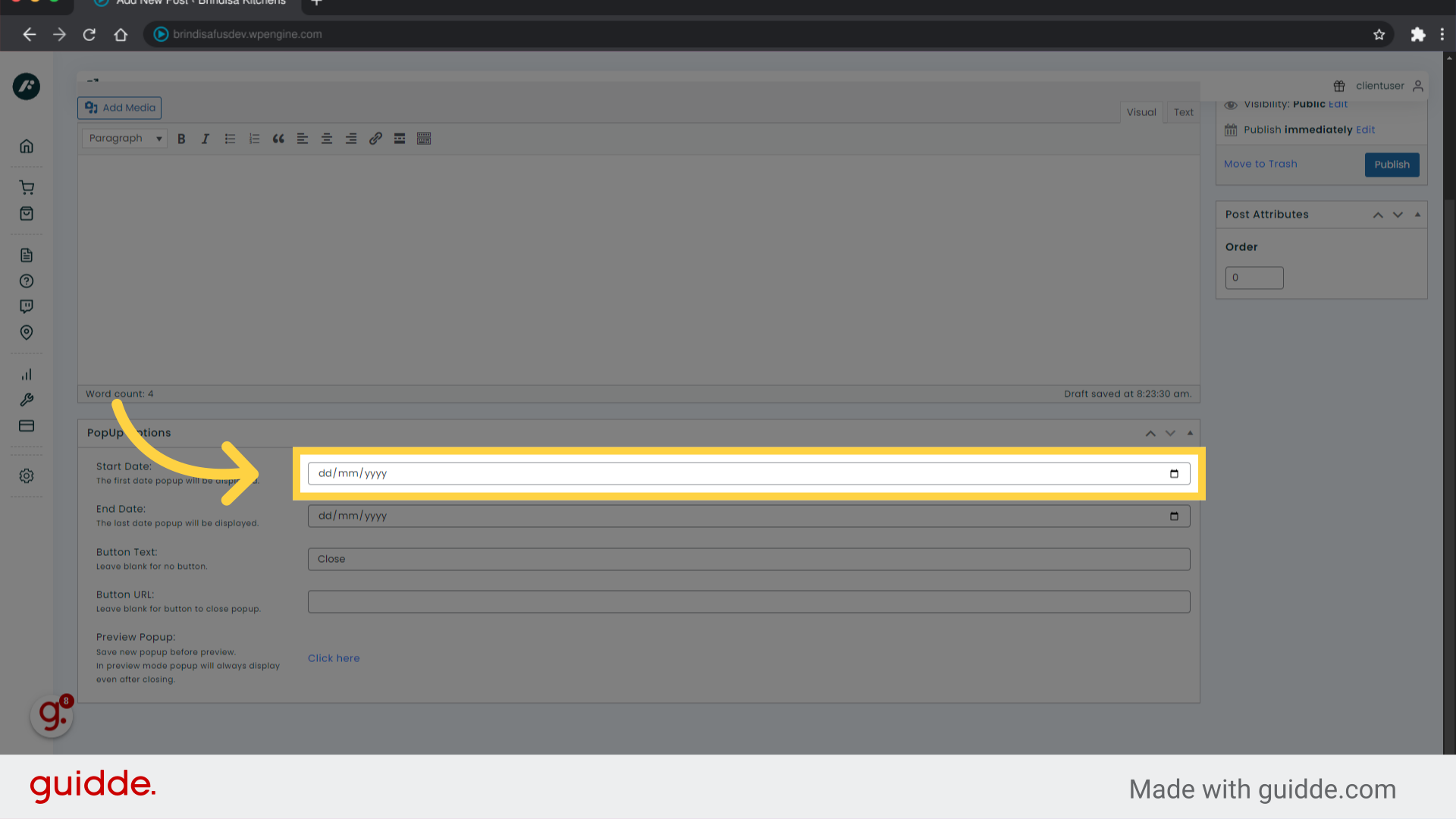
8. Start Date
Enter the desired date.
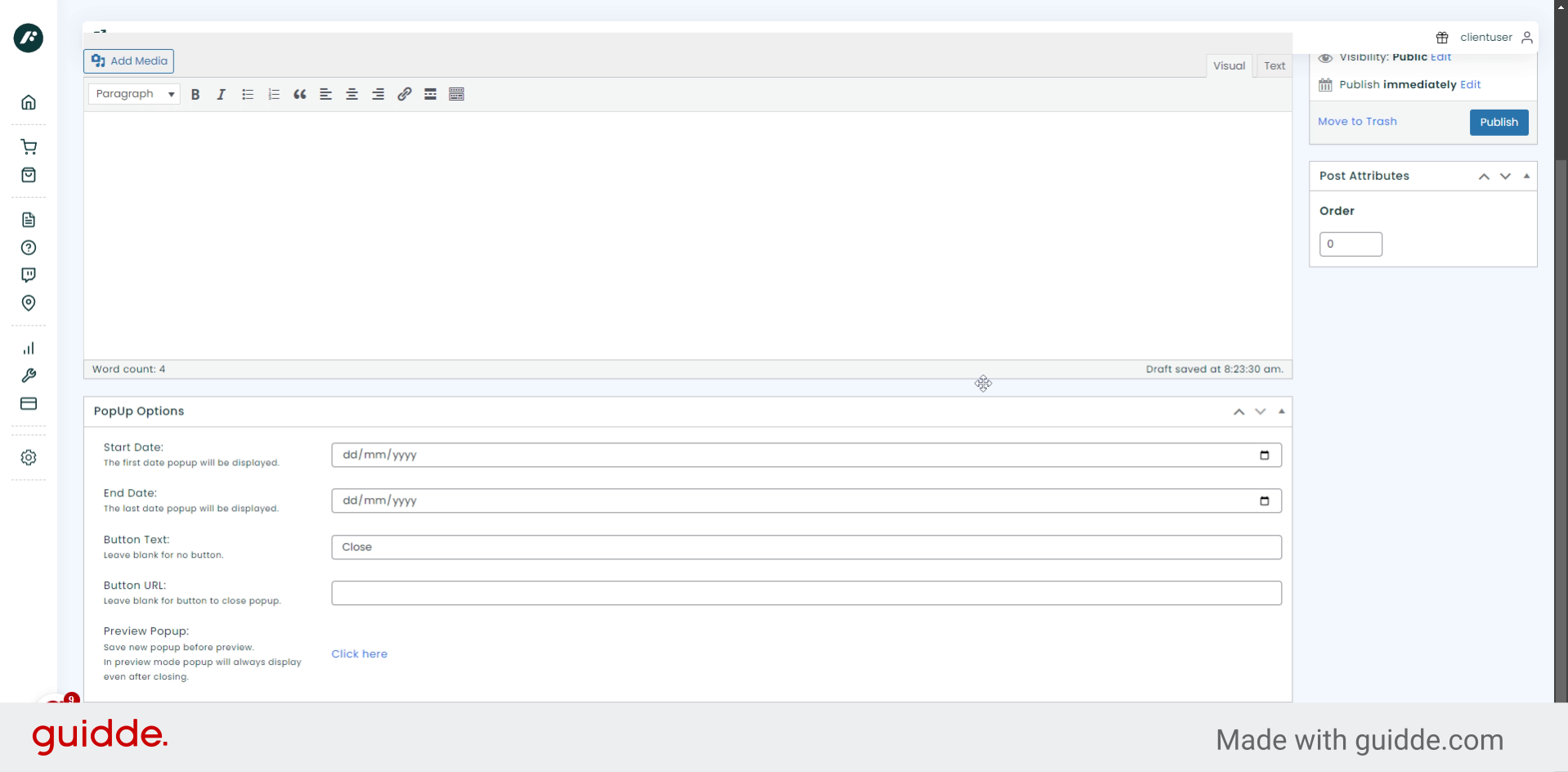
9. End Date
Enter the last date your popup should be displayed.
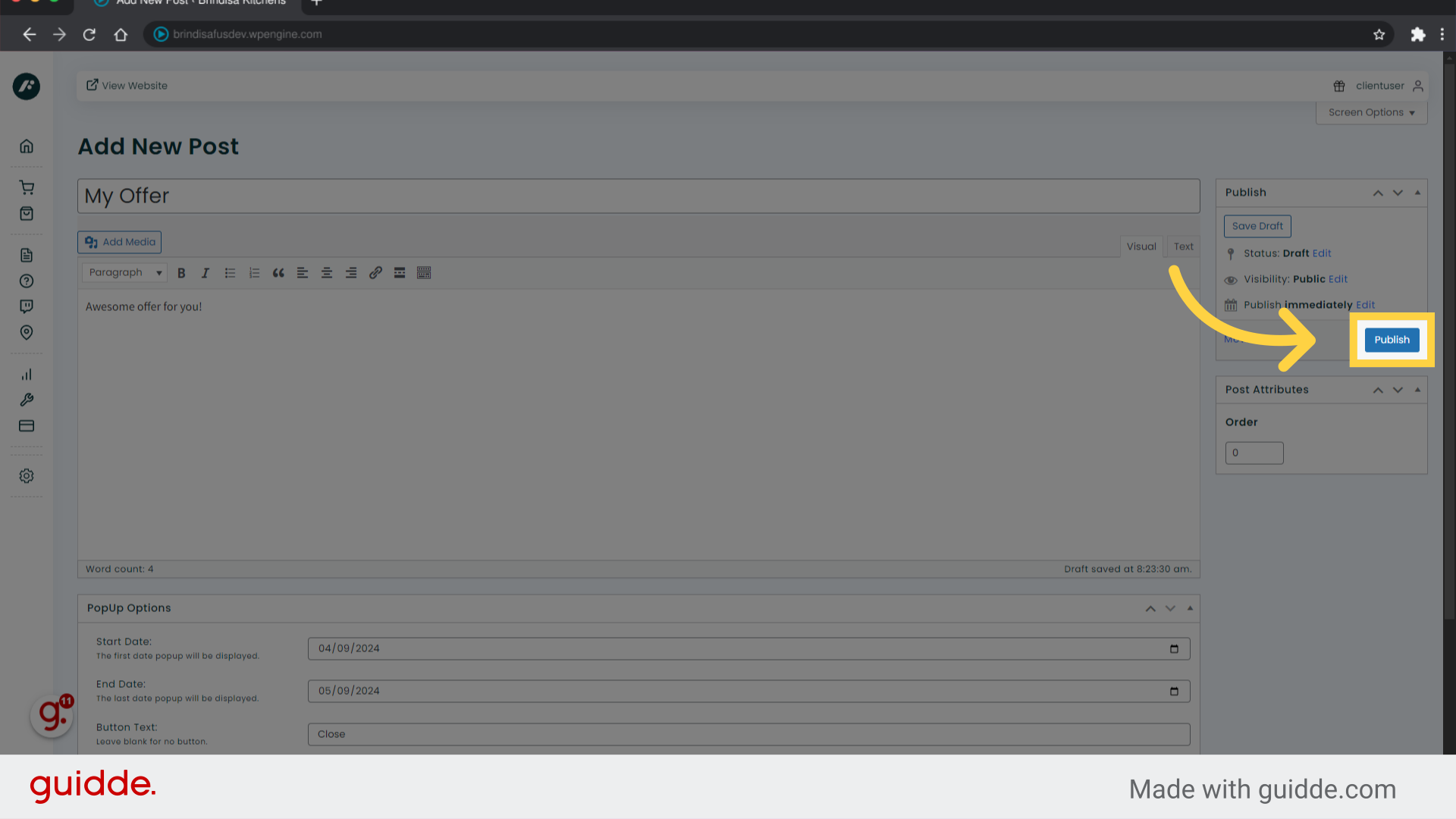
10. Click “Publish”
Publish the popup to save.
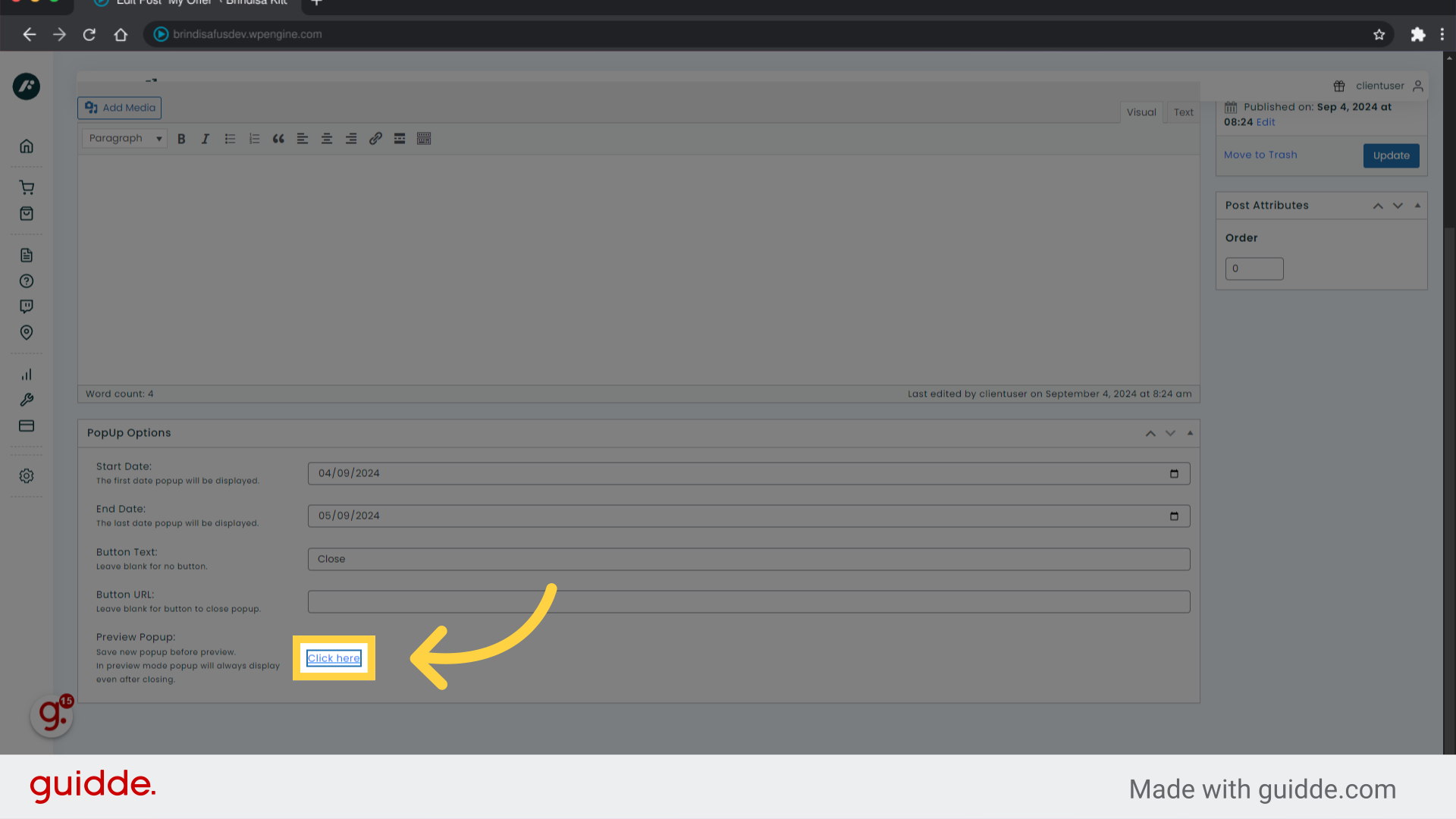
11. Preview your popup
After saving you can preview the popup by clicking this link. You can preview the popup even if the scheduled date is in the future.
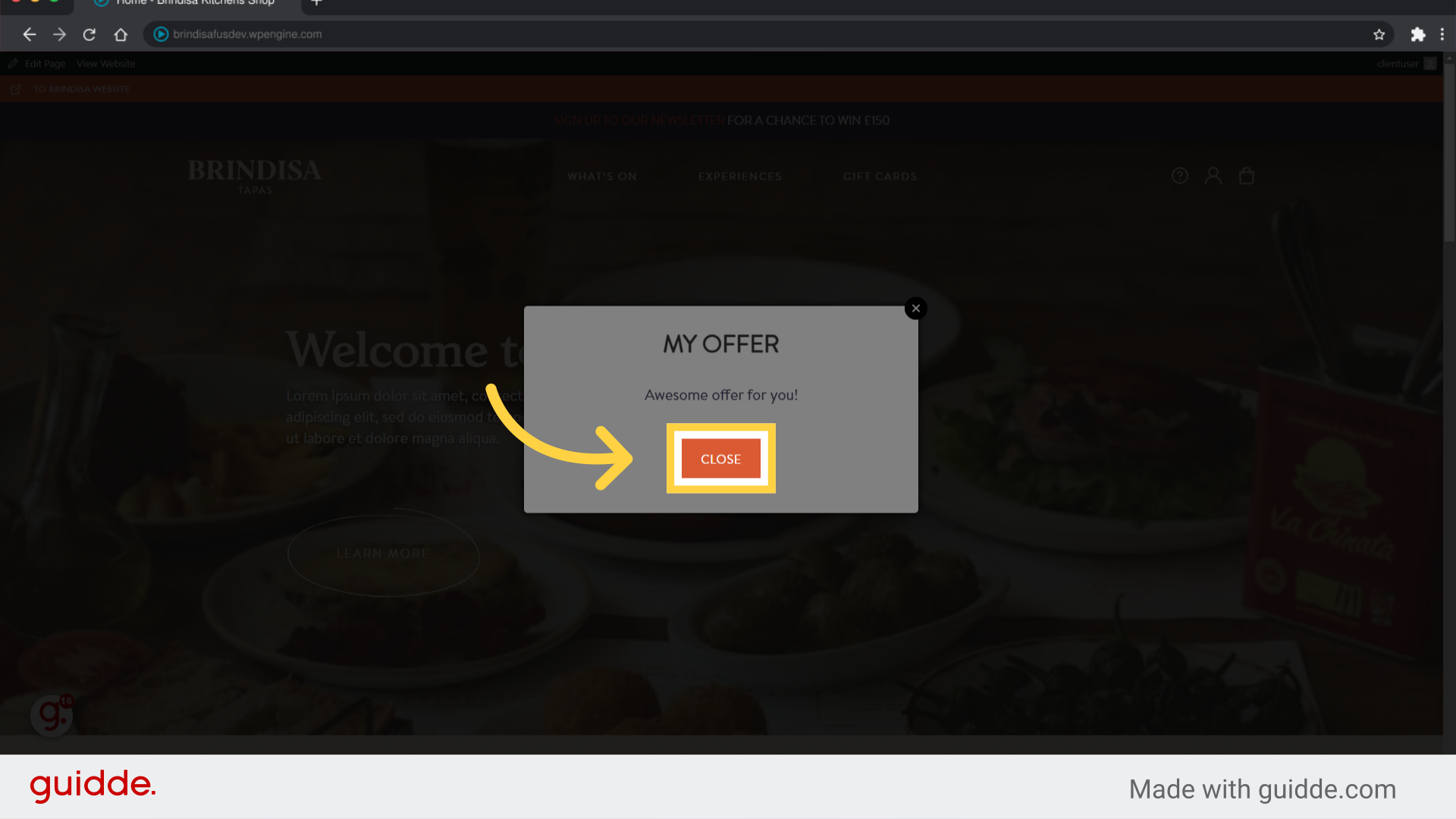
12. CTA Button
Here is the popup preview.
This guide covered accessing the PopUps section, creating new popups, previewing and saving popups.